9 AI: Meet AI
Meet your new assistant
Microsoft Copilot
This course uses Microsoft Copilot, which the university provides to you as a student. Microsoft has attached the Copilot name to several quite different products, which is a but confusing. The one you want is the chat assistant that runs in a browser tab. GitHub Copilot is separate tool that suggests code inside the VS Code editor as you type and that this course deliberately does not use. Your editor stays a place where nothing writes code but you.
Go to the Copilot landing page at copilot.microsoft.com and choose Work (not Web or Personal) and sign in with your university credentials. If you find yourself in a session that does not show you as signed in with your university account, sign out entirely and start again from the landing page.
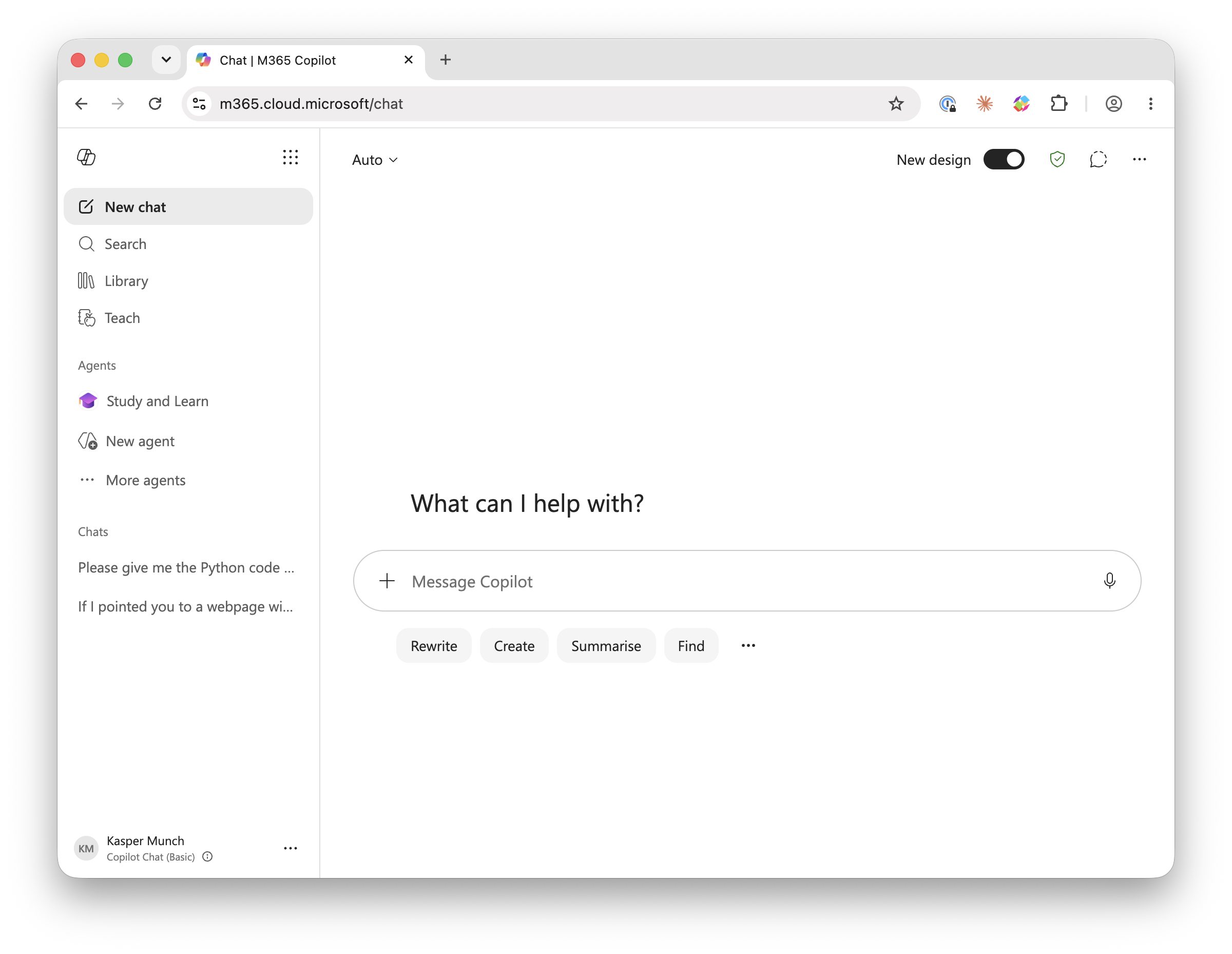
What to expect of it
Interacting with an AI is a conversation and Copilot will remember your previous exchanges in a session/chat and take them into account in its answers. This is useful when you are refining a piece of code but may throw the AI of if you break to a new topic without letting it know. It also does not take into account how long it takes you to respond. So if you come back to an open session days later, it will not have missed you and wonder what you will ask today. It will assume you are continuing exactly as you left it. So start a new conversation for each new topic. It will also give you different answers to the same question if you ask it again.The version of the underlying model behind Copilot changes over time. Answers you get in this term may differ from answers a classmate of yours got last term or that you get yourself next month. Copilot has a Study and Learn agent, which behaves less like a machine that answers and more like a TA that asks you questions back to help you figure out yourself. When will refer to both modes as “the assistant” depending on what a given exercise asks for.
Your conversations are saved automatically in the left-hand sidebar in the “Chats” section, with a short title generated from your first message. If you want to return to a past chat but do not remember what is was called there is a “Search” option near the top of the sidebar. There is also a “Library” section where saved or pinned content may be organized separately. Starting a new topic is as simple as clicking “New chat” at the top. Make an effort to keep your conversations organized from the beginning rather than mixing unrelated questions into one long thread.
How to use it in this course
Keep Copilot in a browser tab, separate from your editor (vscode), which stays an AI-free space for the whole course. No Copilot extension enabled, no inline suggestions, no auto-completion, no chat. We do this because you cannot learn to judge code you did not write until you have spent real time writing code yourself, one substitution and one reduction at a time. Keeping the AI separate, from where you work yourself, makes it explicit when and how you use the AI. The habits this material builds depend on well-defined boundary between the code you write and the code the assistant proposes, and on you making deliberate decisions when to cross that boundary. As described in Chapter 4, each exercise carries a small badge/link showing which of AI assistance you can use
Keep them separate
The browser is where you consult the AI, the editor is where you think and do your work.
When Copilot gives you a code answer, it will normally appear in a distinct code block with its own formatting with a small copy icon in the corner. Clicking that copies the entire snippet to your clipboard for pasting into your editor. If you want Copilot to look at code you have written, you can just paste it into the input field, ideally with a bit of explanation at the top like “this code is giving me an IndexError, can you help me find out why?” Pasting the actual code rather than just describing the problem gives Copilot precise details to work with. The same goes for error messages. Better to copy any error message text exactly as it appears rather than paraphrasing it.
The role ladder
Explainer · Comparer · Drafter · Collaborator · Developer
The logbook
Once a week, you will write at least one entry in your logbook, about something the assistant got right, something it got wrong, and how you knew which was which. By the end of the term the logbook will be a record of your own growing skill at telling a plausible answer from a correct one, which is a more useful thing to have at the end of a course than almost anything else you will produce. Even so, the real value of the logbook is writing it, not reading it later.
Exercise 9-1
Log into Copilot now, choosing Work rather than Web or Personal. If anything about the sign-in looks off, sign out completely and start again from the landing page. Once you’re in, find the Chats list, the Search box, and the Library. Use Search to look for a conversation you haven’t had yet, and confirm it correctly finds nothing. Then start a new chat and ask it, in your own words, what the Study and Learn agent is and how it’s supposed to behave differently from an ordinary answer. Read what it tells you, then check that against what this note said above about it, where the two agree, and where the assistant’s account is thinner, or flatly different.
Exercise 9-2
Open two separate new chats, not one continued conversation. In each, ask the exact same question, something ordinary you already know the answer to works best, such as what a SyntaxError message means. Before you compare the two answers, decide what you expect: identical wording, similar substance in different words, or an actual disagreement about the facts. Then read them side by side. If they only differ in phrasing, that is the case this note called telling you a little. If they disagree about something substantive, you now know at least one of them is wrong, and working out which is more useful than either answer taken alone.
Exercise 9-3
Write a short Python script with one deliberate mistake in it, a missing colon or a misspelled keyword is enough, and run it from the terminal the way you ran your very first program, so you get a real traceback. Copy the code and the exact error text, paste both into a new chat, and ask what is wrong, pasting the error exactly rather than describing it in your own words. Read the explanation, then make the fix yourself in your editor and run it again to confirm it actually works, rather than trusting that it does because the explanation sounded right.
For your logbook this week, note which badge you are most looking forward to earning, and which one makes you the most nervous, and why.
Exercise 9-4
Ask the assistant, in the browser, what a license badge and a SOLO marker are for in a course, without telling it anything about this course specifically. Read its guess. Then compare it against what this note just told you. Where did it match, and where did it just produce something plausible-sounding that happened to be wrong for our purposes? This is the smallest possible version of the whole term: ask, read, check against the real thing.